

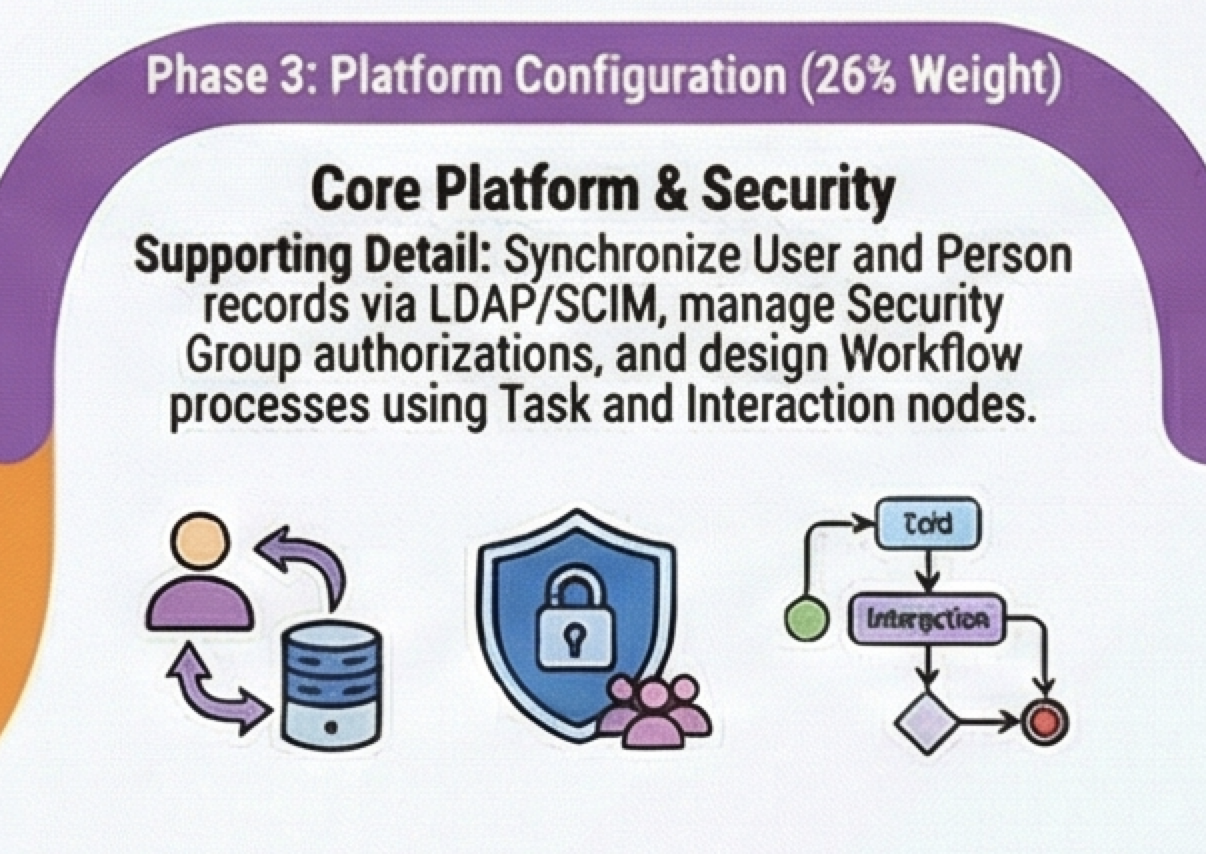
Welcome back to the Maximo Mentor Series! If you are an enterprise asset management professional or actively studying for the C1000-183 IBM Maximo Manage Functional Deployment Professional exam, mastering the platform configuration of Maximo is essential. In this session I’ll walk you through the first 5 sub-sections of Section 3, covering Organizations, Security, People, Users, Labor and Crews focusing on specific things to remember for the certification exam.
Platform Configuration makes up a huge 26% of the certification exam, these foundational structures dictate how data is shared, how security is enforced, and how labor resources are scheduled across your entire organization.
Here is a detailed breakdown of the main topics we cover in this session, along with a couple of top tips to keep in mind!
Main Topics Covered
1. Organizational Options (Sections 3.1 & 3.2) Maximo provides robust options for managing data sharing and business rules across your enterprise.
- Data Sharing & Segmentation: To share inventory stock across all defined organizations, you must create an Item Set and assign it to those organizations. Conversely, data segmentation for assets and locations is handled at the Site level.
- Cross-Site Work: You can enable the “Repair Facilities” option to allow the creation of work orders in a site that differs from the asset’s or location’s actual site.
- Material Reservations: To ensure unused storeroom inventory held by a reservation is freed up when a job finishes, set the “Clear Material Reservation When WO Status Changes to Complete” option in the Other Organization Options.
- Work Order Edit Rules: Administrators can define exactly which fields (like Asset and Location) become read-only at specific WO statuses by using the Work Order Options – Edit Rules.
2. Security Groups (Section 3.3) Controlling access to applications, object structures, and specific data sets is a core administrative duty.
- Data Restrictions: Security data restrictions are highly restrictive; if a user belongs to one group granting full application access and another group that applies an object data restriction, the user will have limited access based on that restriction. You can also restrict access to specific groups of Locations and Assets by using “Collection” restrictions.
- Object Structure Access: When users encounter read errors on specific integration objects (e.g., READ is not allowed on object MXAPIxxxxxx), administrators can resolve this by navigating to the Object Structures tab in Security Groups and granting READ access.
- Role-Based Applications & Dashboards: To authorize user access to Role-Based Application data, administrators must use Add/Modify Signature Options. To ensure users immediately see the Operational Dashboard upon logging in, make it the Default Application for their Security Group.
3. Calendars, Labor, Crafts, and Crews (Sections 3.4 & 3.5) Properly structuring working time, pay rates, and team assignments is necessary for accurate scheduling and dispatching.
- Calendars & Shifts: Calendars operate at the Organization data level. When configuring shift patterns (for example, working 6 days and taking 3 days off), the total days in the pattern is the sum of both, making it a 9-day pattern. If you need to adjust a non-working day to make it a working day, this is done in the Work Periods tab.
- Crafts: When setting up Craft Premium Pay Codes, valid rate types include Multipliers and Increments.
- Crews: “Rotating Tools” can be assigned as Required Tools for a Crew. Additionally, if you need to create Crew Work Groups, these are actually created and managed within the Person Groups application.
——————————————————————————–
Top Tips for Maximo Platform Configuration
- Tip 1: Remember Data Levels! Knowing what data lives where is a common exam topic. Remember that Calendars are created at the Organization level, while Assets and Locations are stored at the Site level.
- Tip 2: Types of Premium Pay Codes: Remember – premium pay codes can have 2 rate types, Multiplier and Increment.
- Tip 3: Deactivating Sites: If you need to disable a site that is no longer in use, you do not delete it; instead, you use the action to make the site inactive.

Leave a Reply